How to Sync Google Drive With Dropbox: Sync vs Copy
If you have searched for how to sync Google Drive with Dropbox, you probably want one of two different things. Working out which one saves you from installing the wrong tool.
What a sync actually is
A sync keeps two folders identical over time. Change a file on one side and the change shows up on the other, usually in the background. It needs something running all the time, and it has to decide what to do when both sides change, or when a file is deleted on one side.
That is the right tool when the same folder must always agree in both places and either side can change.
What most people actually need
In practice, most searches for this are about getting files from one service into the other:
- a client sent you Dropbox links but your team lives in Drive
- you are moving from one service to the other and want the old files over
- you want a backup copy of a project in a second place
None of these needs two-way syncing. A one-off copy does the job, and there is nothing left running afterwards.
Your options
Both desktop apps. Install Dropbox and Google Drive for desktop and copy between the two synced folders. Simple, but both folders sync onto your computer, so you need the disk space and the bandwidth.
A dedicated sync tool. If you really need two-way syncing, use a tool built for it. Check how it handles conflicts and deletions before you point it at anything important.
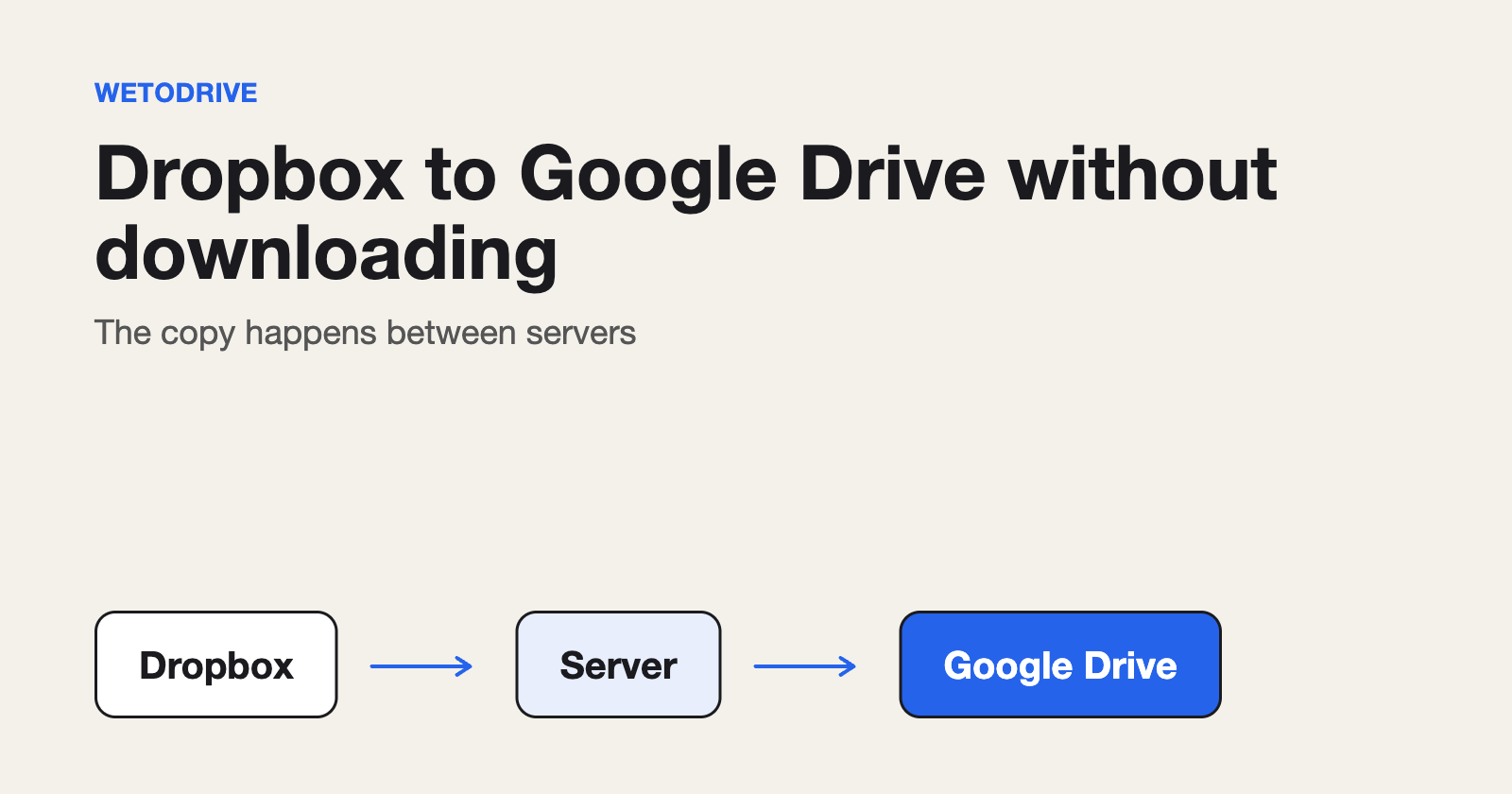
A copy on a server. WetoDrive is not a sync tool, and I would rather say so plainly. It copies the files and folders you choose, in either direction, when you press Transfer. It runs on its own servers, so nothing goes through your computer, and it never deletes or changes the source.
Keeping two places roughly in step with copies
If new files land in Dropbox every week and you want them in Drive, copy the new folder across when it arrives. Because each transfer is a copy, you can run it again whenever you like without risking the originals.
A quick test
Ask yourself: if I delete a file on one side, should it vanish on the other? If yes, you want a sync. If you want the safety of two separate copies, you want a copy.
Our guide to syncing Google Drive and Dropbox has the comparison table.
Disclosure: I run WetoDrive, the tool mentioned above.
About the author
Full Stack Developer and Cloud Engineer with 4+ years of hands-on experience designing, developing, and implementing applications and solutions using a range of technologies, platforms, and programming languages.
Comments
Join the discussionNo comments yet. Be the first to comment.