How to Migrate Dropbox to Google Drive: A Checklist
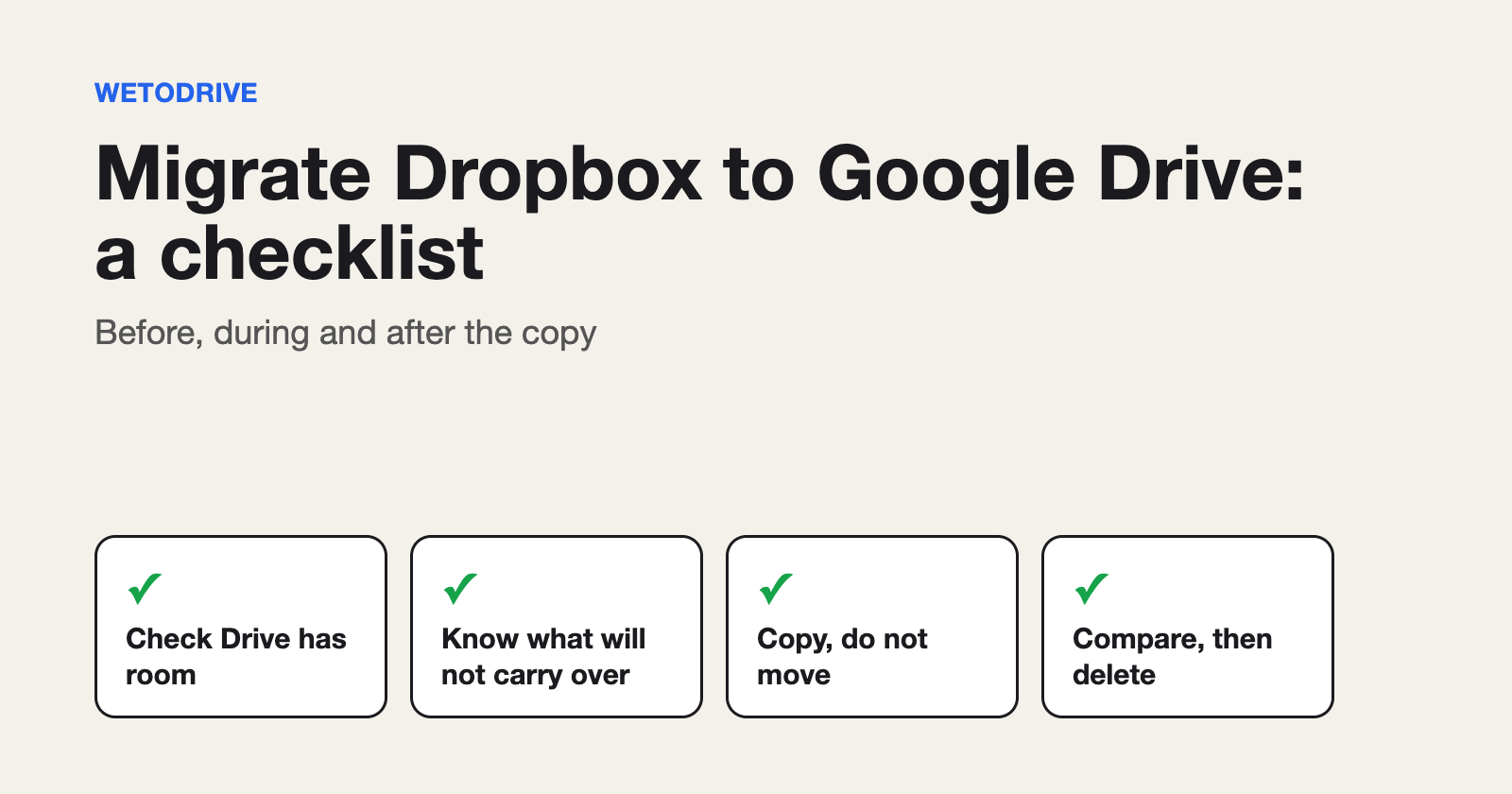
Moving a Dropbox to Google Drive is easy to start and easy to get wrong halfway. This is the checklist I would run through before and after, so nothing is lost on the way.
Before you start
1. Check that Google Drive has room. Every Google account gets 15 GB free, but that is shared with Gmail and Google Photos. A big Dropbox may need a paid Google plan first.
2. Know what will not come with the files. A copy brings the files, with their names and folders. Sharing links, version history, comments and Dropbox Paper docs stay in Dropbox, because they belong to Dropbox rather than to the file. If someone relies on a shared link, tell them it will change.
3. Decide what you are actually moving. Most Dropboxes are half old downloads and duplicates. Going folder by folder is a good moment to leave junk behind.
The move itself
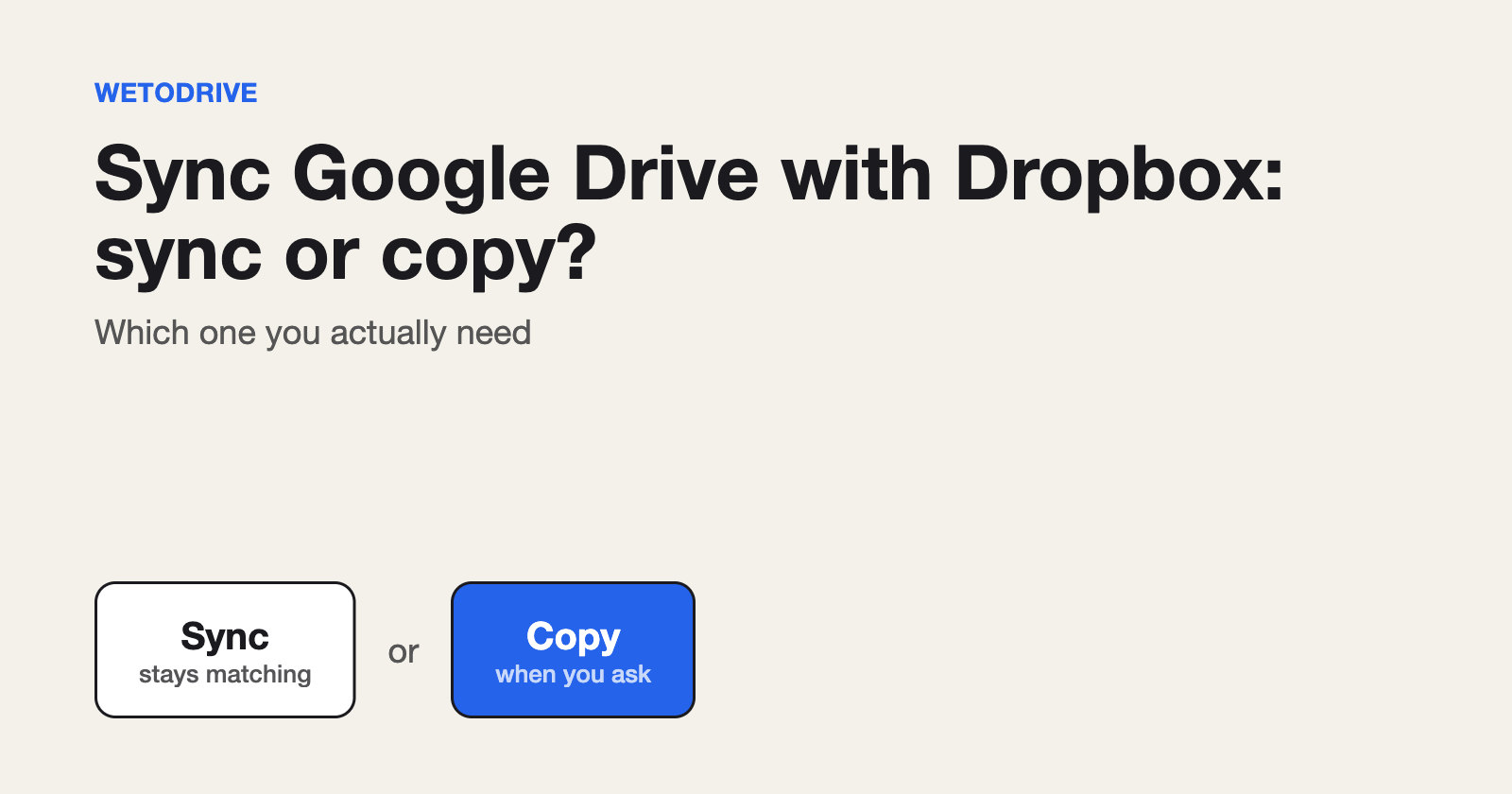
4. Copy, do not move. For this job "migrate", "move" and "copy" are the same step: the files are copied into Drive and the originals stay put. That is the safe order, because you can check the result before deleting anything.
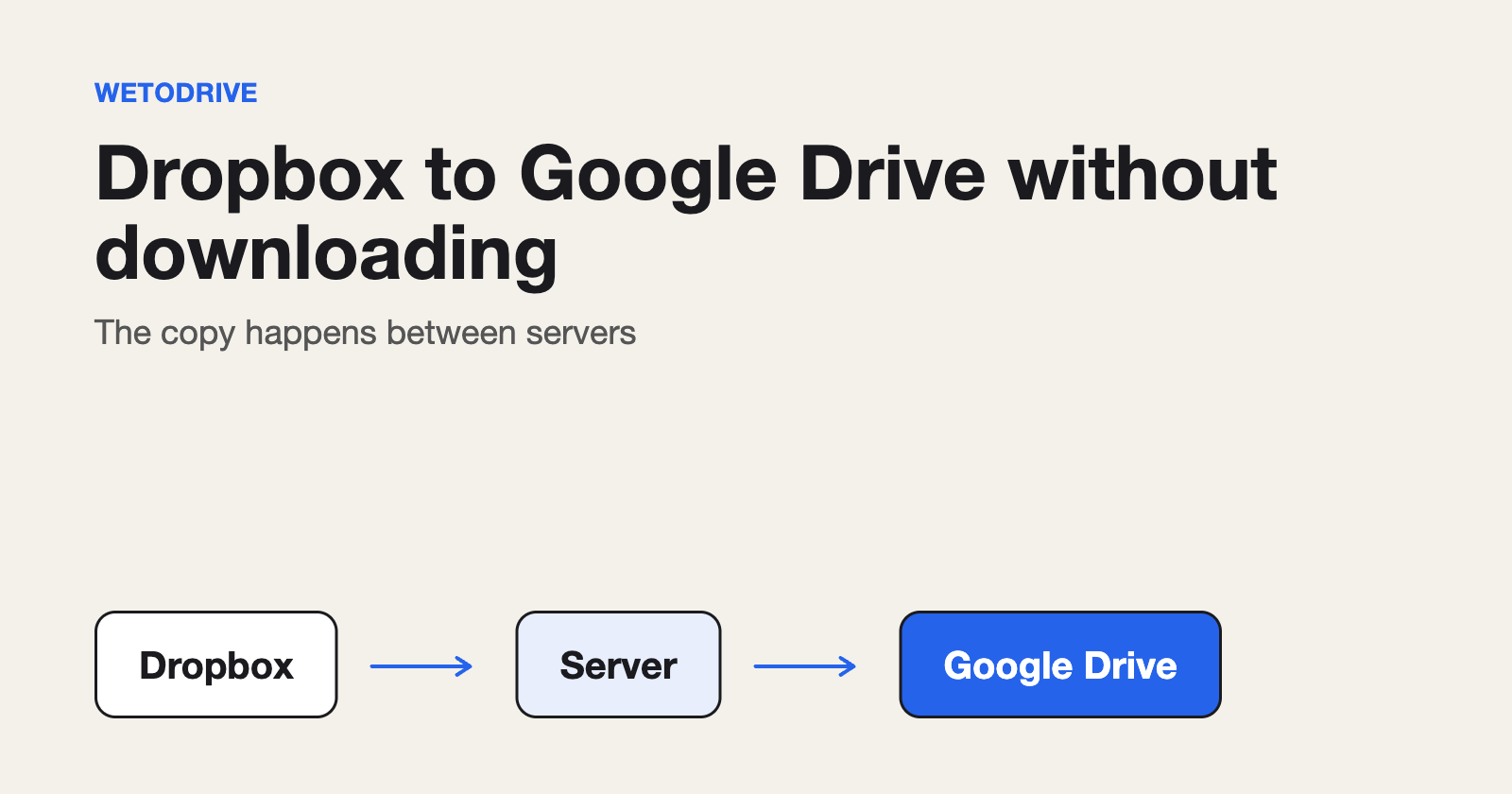
5. Pick a way that does not use your own connection. Downloading and re-uploading a large folder sends everything through your computer twice and stops if the laptop sleeps. A transfer service copies on its own servers instead. With WetoDrive you connect Dropbox and Google Drive once, pick a folder, press Transfer and close the tab. It emails you when the files are in your Drive, and it only reads your Dropbox.
One practical note: each folder you pick counts as one transfer on your plan, so a Dropbox with many top-level folders takes several. The free plan includes five.
After the copy
6. Compare the two. Open the new folder in Drive and check that the number of files and the total size match the original.
7. Open a few files. Spot-check a large one, a photo and an Office document, to be sure they open.
8. Delete from Dropbox yourself. If you are leaving Dropbox, remove the folder only once you are happy with the copy. Nothing is deleted automatically.
9. Update the people who had links. Share the new Drive links where the old Dropbox ones were used.
The longer version, with the questions people ask most, is in our guide to migrating Dropbox to Google Drive.
Disclosure: I run WetoDrive, the tool mentioned above.
About the author
Full Stack Developer and Cloud Engineer with 4+ years of hands-on experience designing, developing, and implementing applications and solutions using a range of technologies, platforms, and programming languages.
Comments
Join the discussionNo comments yet. Be the first to comment.