How to Connect Dropbox to Google Drive, and What the Permissions Mean
Connecting Dropbox to Google Drive sounds like it merges two accounts. It does not. Before you click "Allow" on a permissions screen, here is what the connection does, what each side can see, and how to undo it.
What connecting means
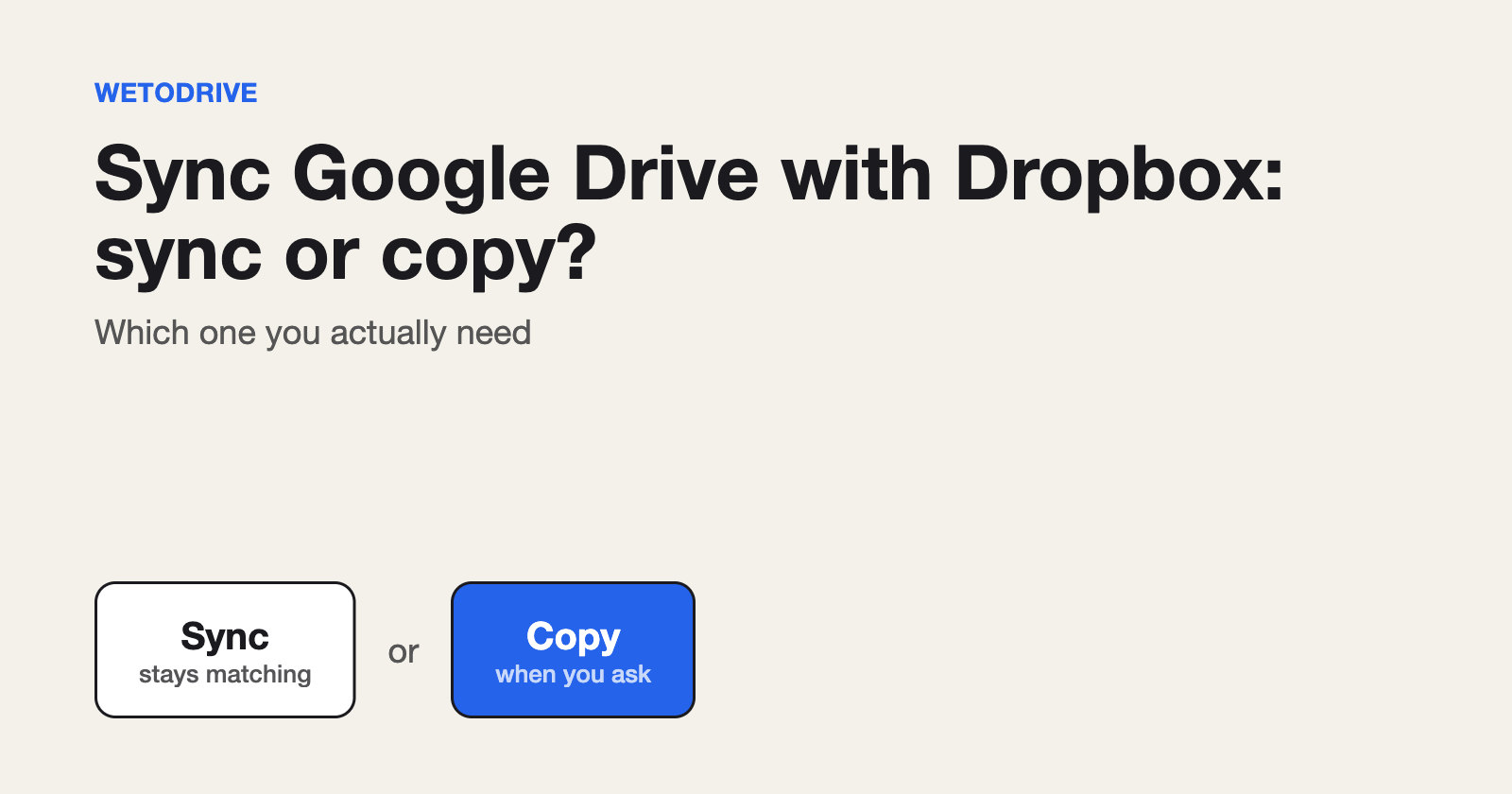
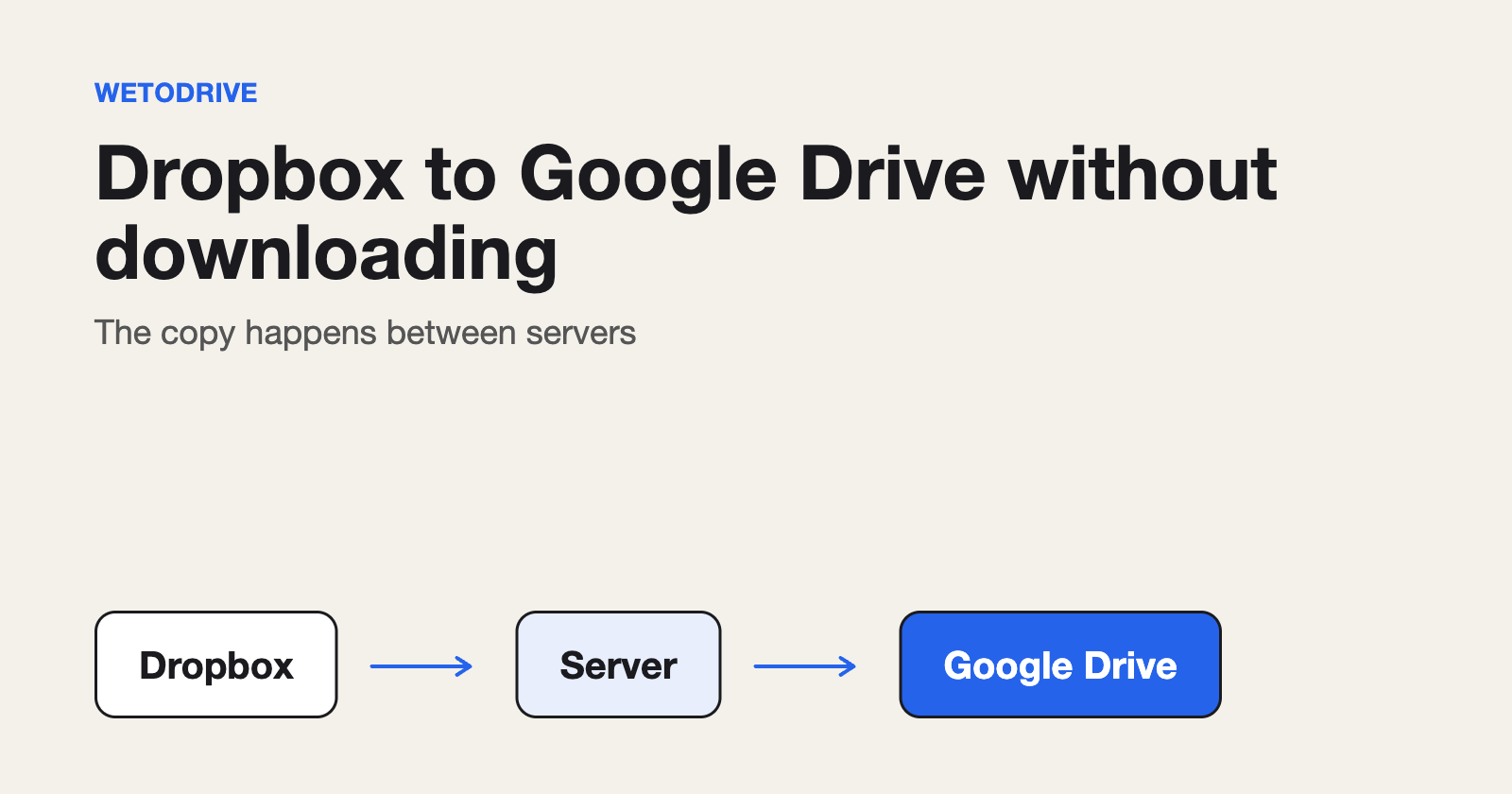
Connecting does not sync or merge anything. It gives a transfer tool permission to read the Dropbox files you pick and to add files to your Google Drive, so it can copy between them for you. Your two accounts stay separate.
What each permission covers
Google Drive. A well-behaved tool asks Google for the narrowest permission available. That covers only the files and folders created through the tool, or the ones you choose in Google's own picker window. It cannot browse the rest of your Drive. If a tool asks for access to everything in your Drive just to copy a few files in, ask yourself why.
Dropbox. The tool reads the files you pick in order to copy them, and adds files when Dropbox is the destination. It should never change or delete anything that was already there.
How to connect them with WetoDrive
It takes a minute and you do it once.
- Sign in to WetoDrive with Google. This connects Google Drive, and is also how you sign in.
- Press Connect Dropbox on the transfer page and approve the request in Dropbox.
- Choose what to move: files in Dropbox to copy into Drive, or files in Drive to copy into Dropbox.
Connecting is free, and the free plan includes five transfers. Plan limits apply to transfers, not to connecting.
Check what you have already allowed
It is worth reviewing the apps you have connected every so often:
- Dropbox: Settings, then Connected apps.
- Google: your account's third-party apps and services section.
Remove anything you no longer use.
How to disconnect
You can disconnect Dropbox from the WetoDrive page at any time, or remove WetoDrive under connected apps in your Dropbox settings. Google access can be removed from the third-party apps section of your Google account. Files already copied stay where they are.
The step-by-step version is in our guide to connecting Dropbox to Google Drive.
Disclosure: I run WetoDrive, the tool mentioned above.
About the author
Full Stack Developer and Cloud Engineer with 4+ years of hands-on experience designing, developing, and implementing applications and solutions using a range of technologies, platforms, and programming languages.
Comments
Join the discussionNo comments yet. Be the first to comment.