How to Move Photos From Dropbox to Google Photos
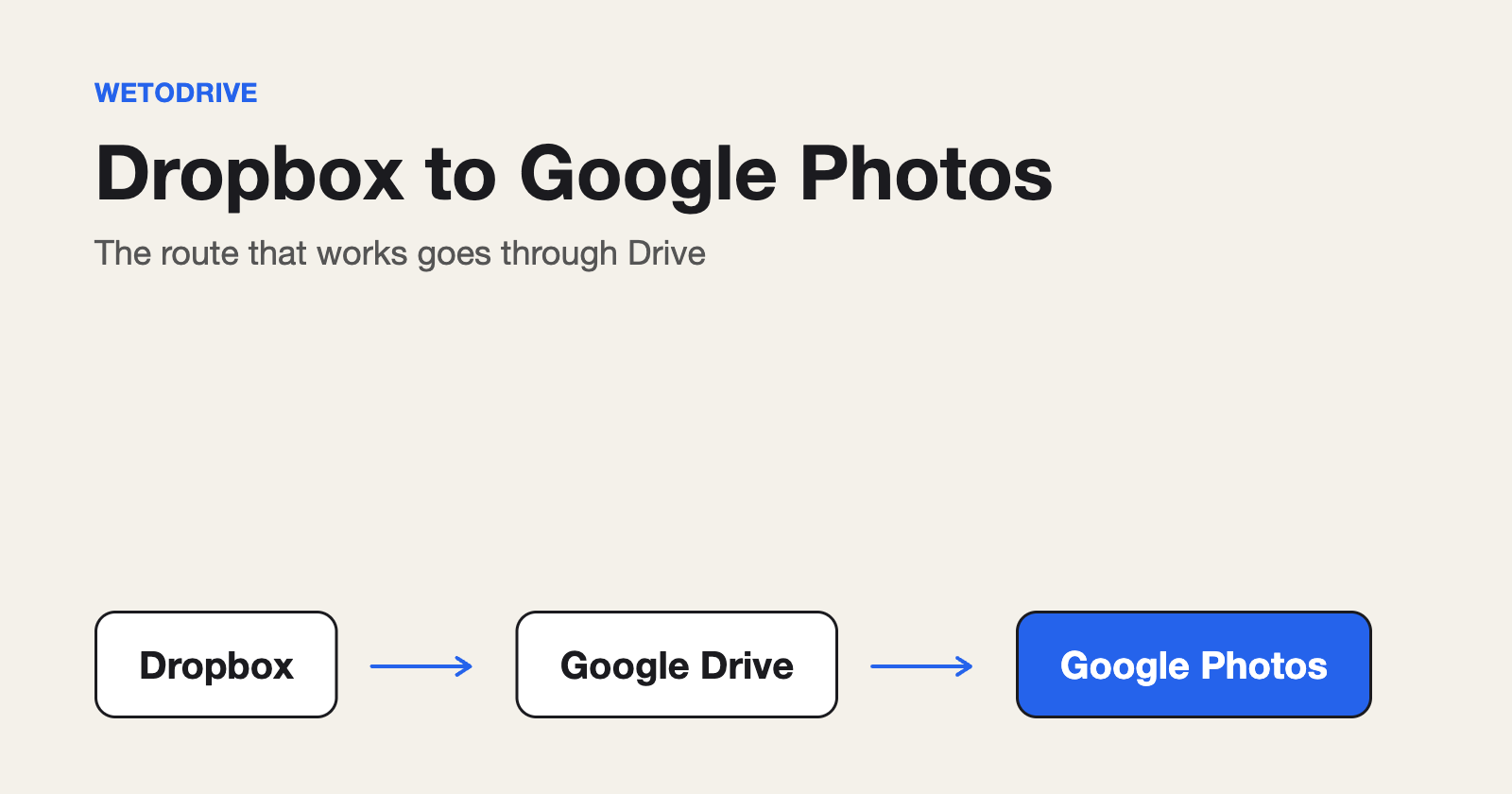
There is no button in Dropbox that sends photos to Google Photos, and Google Photos has no "import from Dropbox" either. The route that works goes through Google Drive. Here is how it goes, step by step, and where the traps are.
Why Google Drive is the middle step
Google Photos and Google Drive are separate places. Since July 2019 a photo that lands in Drive no longer appears in Photos by itself, and deleting it in one does not delete it in the other. So the job is two moves: Dropbox to Drive, then Drive to Photos.
Step 1: Get the photos from Dropbox into Google Drive
You can download the folder from Dropbox and upload it to Drive by hand. For a big album that means the whole thing passes through your own connection twice and has to fit on your disk on the way.
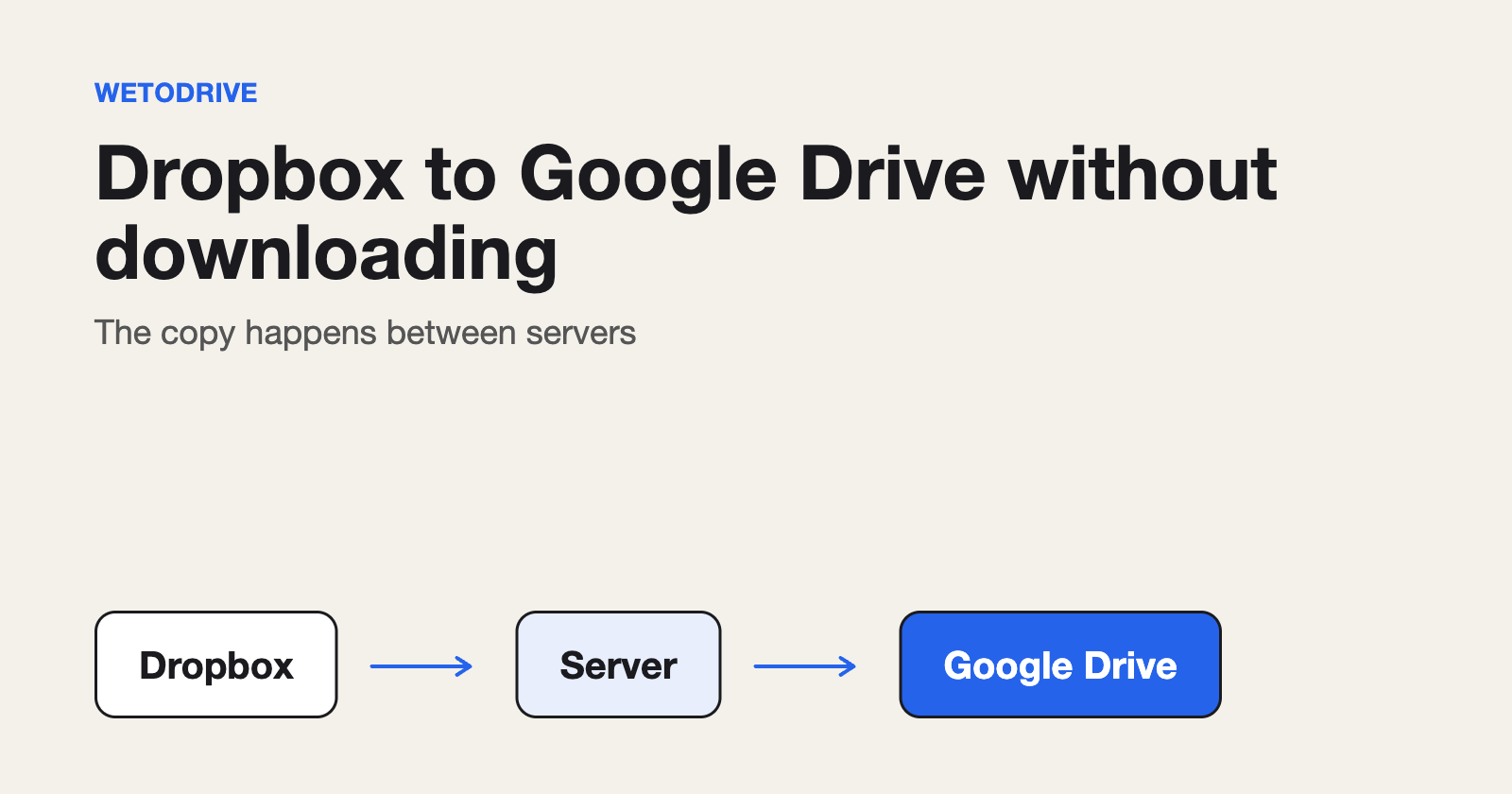
The alternative is a tool that copies between the two on its own servers. We built WetoDrive for that. You sign in with Google, connect Dropbox, pick the photo folder and press Transfer. The photos arrive in Drive at their original size, nothing is resized or recompressed, and your Dropbox is only read, never changed. You can close the tab while it runs and it emails you when it is done. The free plan includes five transfers.
Step 2: Add the photos from Drive to Google Photos
- On a computer, open photos.google.com.
- Click Upload at the top right.
- Choose Google Drive.
- Open My Drive, tick the photos or the folder, and press Upload.
They are now in your Photos library.
Two things to know before you start
You will have two copies. Photos in Drive and the same photos in Google Photos both count toward your Google storage. Once the photos are in Photos and you have checked them, you can delete the Drive copies if you do not need them there.
Original quality is kept, but the storage is not free. Google no longer gives unlimited storage for "high quality" photos, so a large album counts against your 15 GB, or whatever plan you are on.
If you just want the photos safe
If the real goal is getting them out of Dropbox and into Google's storage, you can stop after step 1. Drive keeps the folder structure and original files, and you can add them to Photos later, or never.
More detail, including what each permission covers, is in our guide to moving Dropbox photos to Google Photos.
Disclosure: I run WetoDrive, the tool mentioned above. The manual route in step 2 works without it.
About the author
Full Stack Developer and Cloud Engineer with 4+ years of hands-on experience designing, developing, and implementing applications and solutions using a range of technologies, platforms, and programming languages.
Comments
Join the discussionNo comments yet. Be the first to comment.